%20landscape.png)
Downloading your eSIM
How to download your Extreme Connect eSIM.
Once you’ve installed the Extreme Connect app and selected the plan you want, you will be taken to the checkout to complete the purchase of your plan. Please note; if this is the first time using Extreme Connect on this device, you will not be connected until you DOWNLOAD YOUR eSIM.
Once your purchase is successful, you will see a message to download your Extreme Connect eSIM. When you click “download” you will be taken through several steps to configure your eSIM preferences.
Follow the steps to install your eSIM. These, can, include:
-
Labelling your phone line
-
Setting a default line
-
iMessage and Facetime
-
Mobile data default line

SETTING-UP eSIM
Downloading your eSIM
Labelling data providers / phone lines
Configure iMessage and FaceTime
Once you have completed these steps, your eSIM will install. You can see that you are connected by looking at the Status Bar or Control Centre.
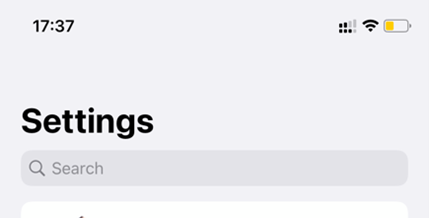
You can also confirm your connection by:
-
Going to Settings
-
Tap either Cellular or Mobile Data

From here you can see any existing mobile plans, and your new Extreme Connect plan (matching the name you used to label it during the configuration stage).
If your Mobile Plan says “On” then you are connected to the Extreme Connect network.